Importing from GPX
Importing from GPX
To import from a GPX file, open the main menu and choose Import routes or tracks....
You can import a single GPX file or a ZIP file containing multiple GPX files. When importing a ZIP file, the items in the Import routes or tracks dialog are grouped by the name of the GPX file they come from.
GPX import creates routes. It does not create a trip directly. If you are planning a multi-day journey, create a trip first and add days in the trip, or import routes and organize them from the Route Manager.
WaypointGuru can import four kinds of items from GPX files.
Item types in the Import routes or tracks dialog
The Import routes or tracks dialog uses pill labels to show what kind of item each entry is.
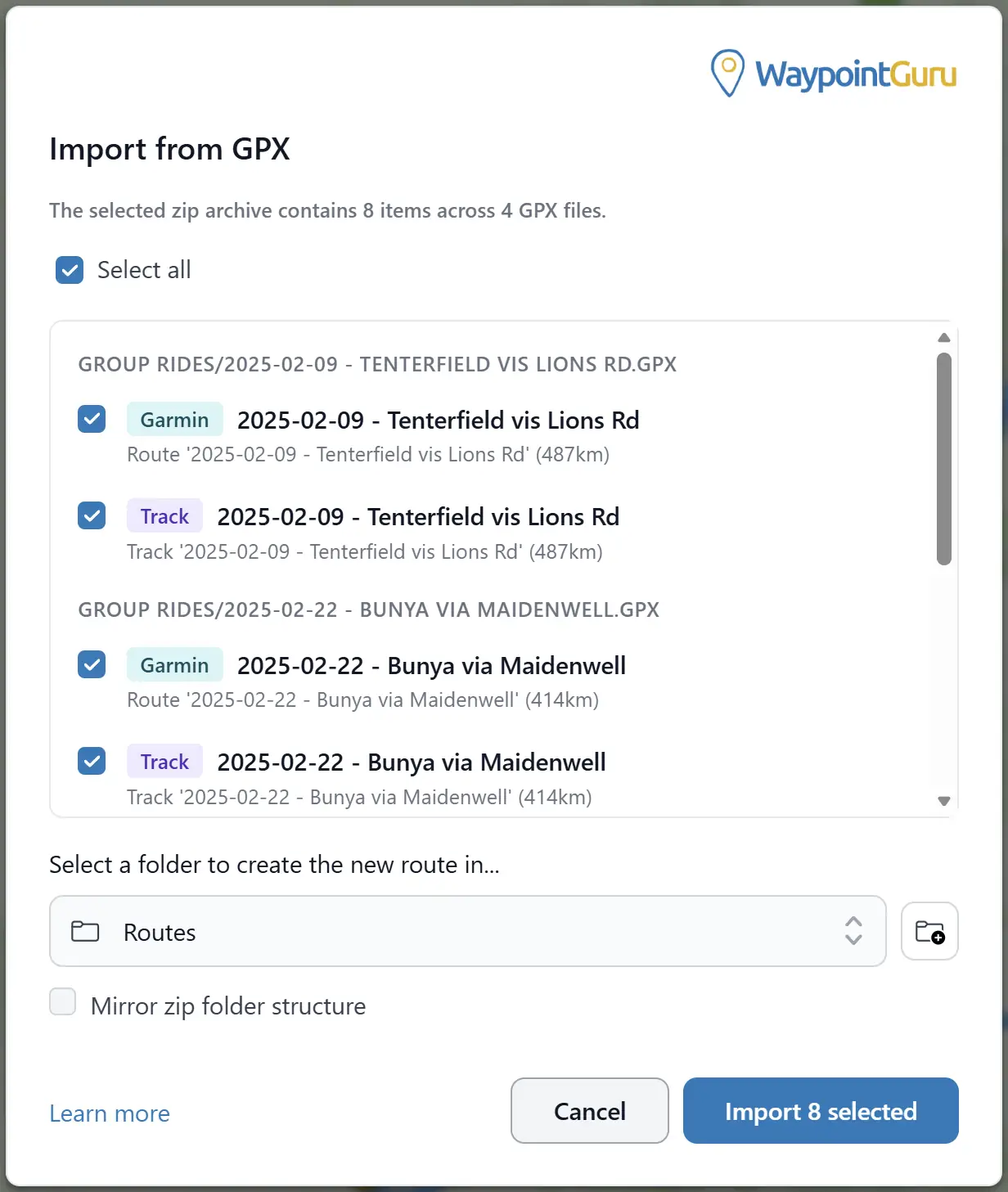
Route
A Route item is a regular GPX route with route points.
It does not include Garmin geometry points, but it can use Garmin extensions that identify shaping points, and WaypointGuru imports those as shaping points.
Track
A Track item is a regular GPX track.
It is converted to a waypoint-based route as described below.
Track-like
A Track-like item is a route that uses route points to define the full geometry of the route.
WaypointGuru treats this like a track and converts it to a waypoint-based route.
Garmin
A Garmin item is a route that uses Garmin extensions to define the full geometry of the route.
WaypointGuru treats this like a track and converts it to a waypoint-based route.
How imported items are converted
WaypointGuru can import routes or tracks from GPX files.
Tracks are typically a recording of a journey, and contain many points that define an exact route.
Routes are typically a planned journey, and usually contain only a few points along the route, with the expectation that a GPS app or device will calculate the route between those points. WaypointGuru refers to these as "waypoint-based routes".
Some route-planning applications export routes with many points, to define an exact route, much like a GPX track. WaypointGuru refers to these as "track-like routes", and treats them like tracks when importing.
Importing a waypoint-based route
When you import a waypoint-based route from a GPX file, WaypointGuru imports the route as a series of waypoints, and calculates the route between them. These waypoints are imported as via points by default, unless the GPX file uses Garmin extensions to specify shaping points.
If the GPX file contains a route name, that name will be used as the name of the route in WaypointGuru. Otherwise, the name of the GPX file will be used.
Subscriptions
Users with a BASIC (free) subscription can import waypoint-based routes up to their route storage limit. STANDARD and PREMIUM users can import any number of waypoint-based routes.
Importing tracks and track-like routes
A track or track-like route defines an exact route. When you import a track or track-like route, WaypointGuru will attempt to create a waypoint-based route that follows the specified track as closely as possible, but the route may not be exactly the same as the track.
Garmin routes that include full route geometry are treated the same way.
If the track contains timestamps, WaypointGuru will use them to find stopping points and create via points at those locations. It will then insert shaping points between the via points to follow the track as closely as possible.
If the track does not contain timestamps, WaypointGuru will create a via point at the start and end of the track, and insert shaping points to follow the track as closely as possible.
If the GPX file contains a route or track name, that name will be used as the name of the route in WaypointGuru. Otherwise, the name of the GPX file will be used.
Subscriptions
Only users with a PREMIUM subscription can import tracks or track-like routes from GPX files.