Favorite Places
Favorite places let you save locations that matter to you — hotels, fuel stops, scenic viewpoints, restaurants, or any point of interest — so you can find them quickly and use them across routes and trips.
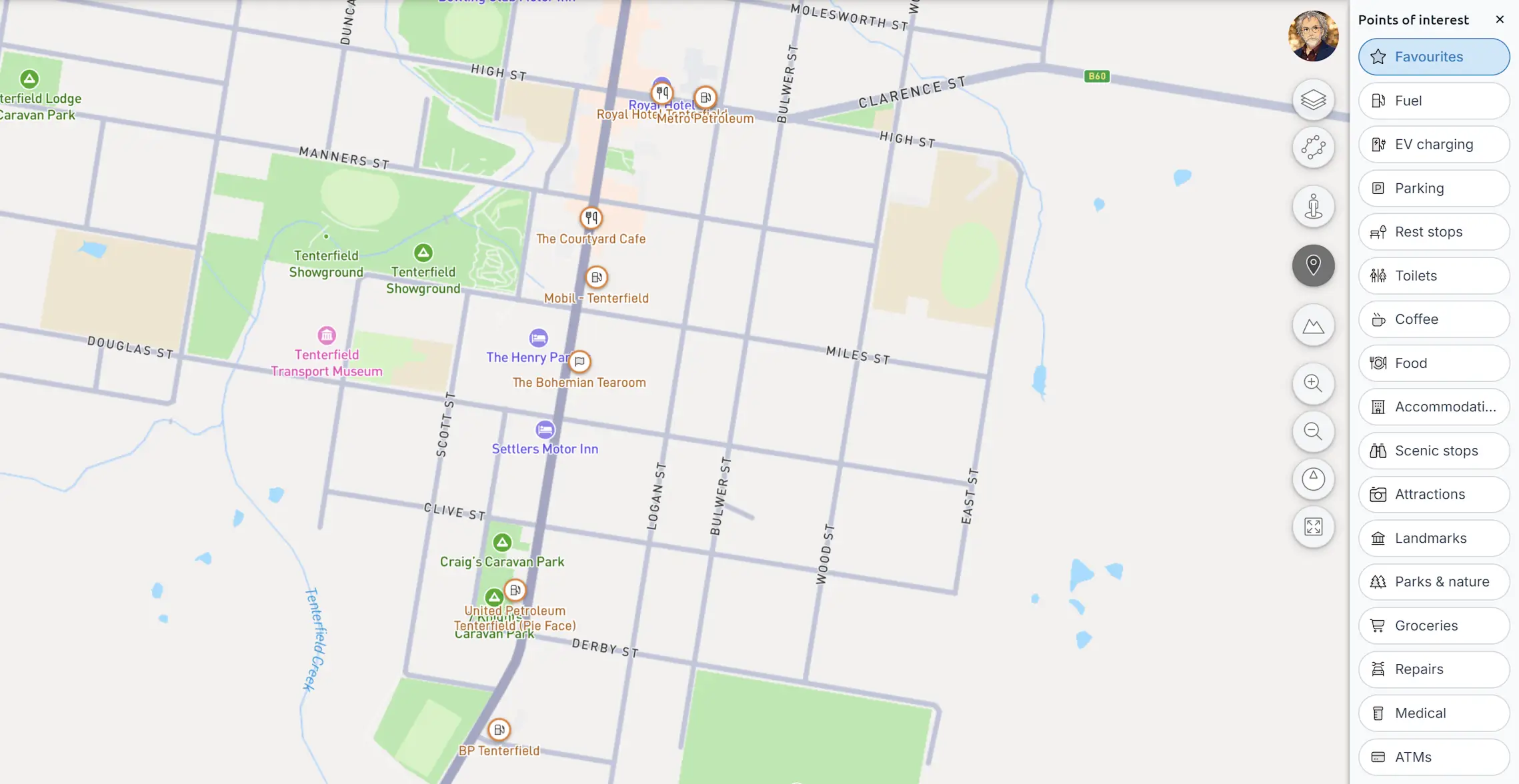
Adding a favorite place
There are several ways to add a favorite:
- From the map — click any location on the map to open the map popup, then choose
Save to favorites. - From a waypoint — open the waypoint context menu (three-dot button) and choose
Save to favorites. - From a file — use
Import favorite places...in the main menu to import favorites from GPX, KML, or GeoJSON files.
The favorite place dialog
When you add or edit a favorite, a dialog lets you set its details.
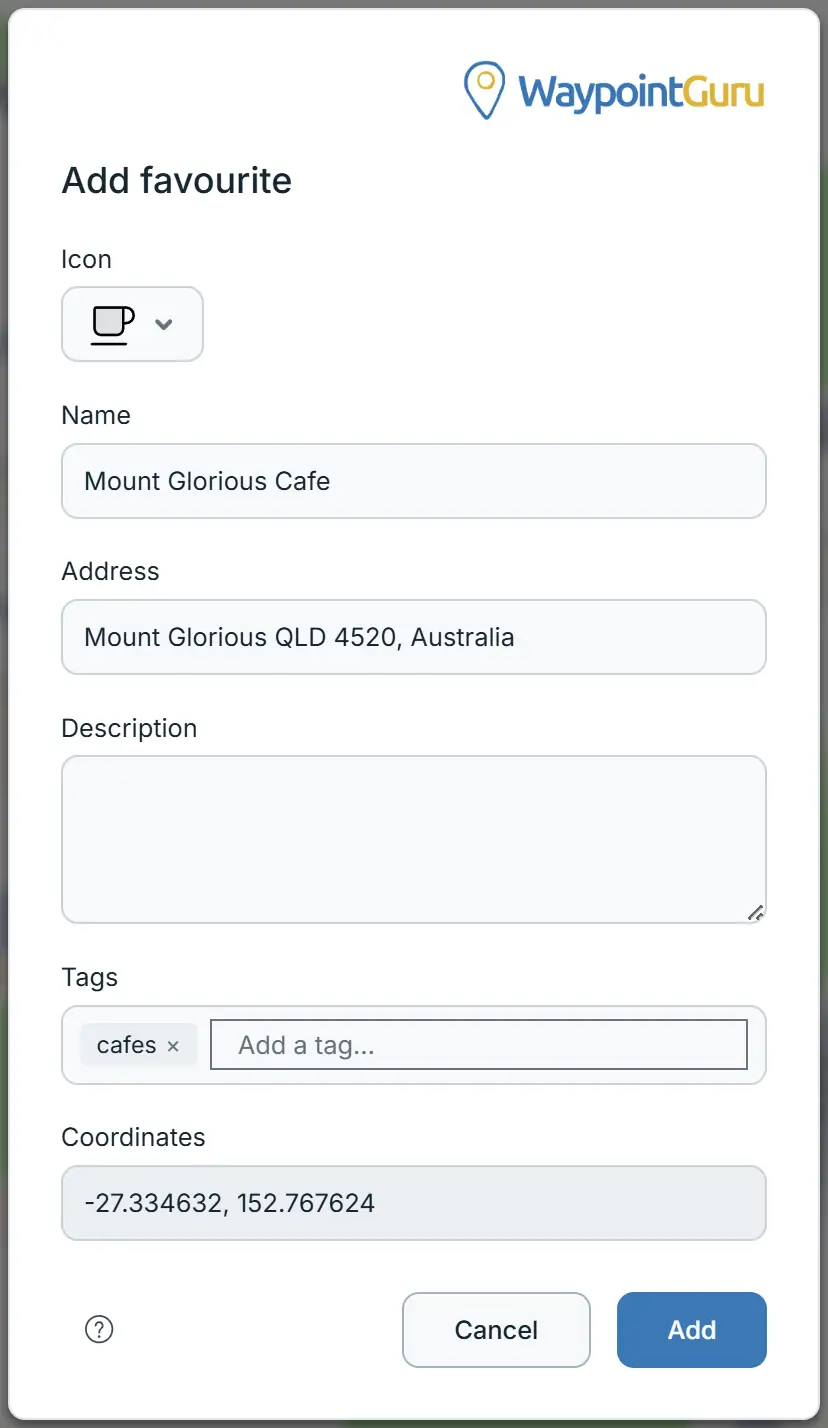
- Icon — choose from a library of icons. The icon appears on the map marker and in lists.
- Name — a short name for the place. If left blank, a name is filled in automatically from the location.
- Address — the address of the place. Filled in automatically if you don't provide one.
- Description — optional notes about the place.
- Tags — organize favorites with tags. Type a tag and press Enter or comma to add it. Existing tags from your collection are suggested as you type. A favorite can have up to 30 tags.
- Coordinates — the latitude and longitude of the saved location (read-only).
Viewing favorites on the map
When the POI panel is open and the Favorites category is selected, your favorite places appear on the map as orange markers. Click a marker to open a popup with options including editing the favorite.
Importing favorite places
Open the main menu and choose Import favorite places... to load favorites from a file.
Supported formats:
- GPX — waypoints are imported as favorites. WaypointGuru GPX files preserve tags.
- KML / KMZ — placemarks are imported as favorites.
- GeoJSON — point features are imported as favorites.
If your file contains tags (from a previous WaypointGuru export or from GeoJSON properties), they are preserved on import.
Managing favorite places
For working with your full collection — searching, filtering, bulk editing, and exporting — use the Favorites Manager.
Open it from the main menu: Manage favorite places....