Favorites Manager
The Favorites Manager is the main place to work with your full collection of saved favorite places. It opens full screen from the main menu: Manage favorite places....
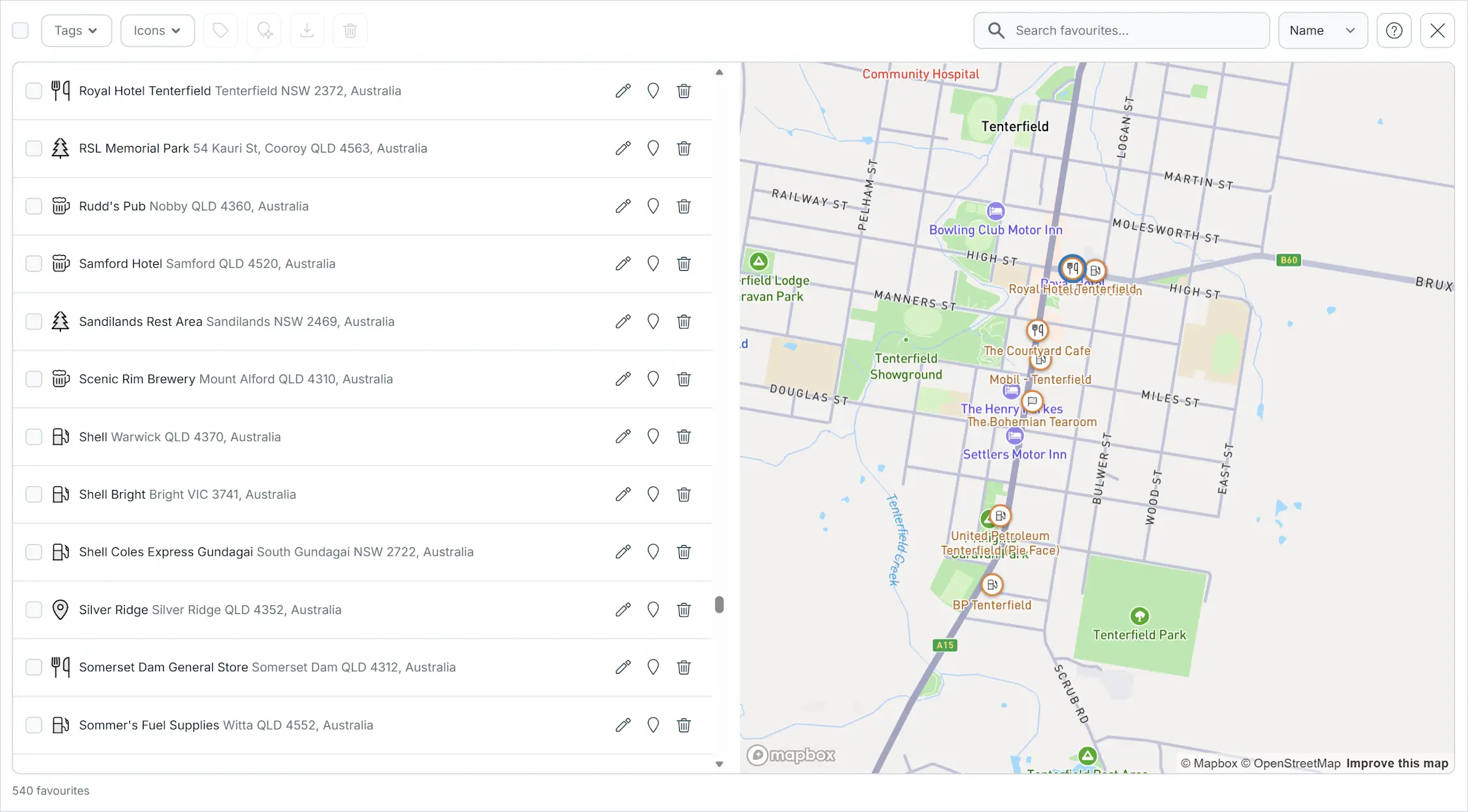
List and map
The manager shows your favorites in a scrollable list on the left and an interactive map on the right.
- Click a row in the list to fly the map to that favorite and highlight its marker.
- Click a marker on the map to scroll the list to that favorite.
Searching
Use the search field to find favorites by name. Results are ranked by relevance, with matching characters highlighted in the list.
Sorting
Use the sort dropdown to change the list order:
- Name — alphabetical.
- Distance — distance from the center of the manager map. The list re-sorts as you pan the map.
- Date added — newest first.
Filtering by tag
Click the Tags dropdown to filter the list by one or more tags. When multiple tags are selected, only favorites that have all selected tags are shown (AND logic).
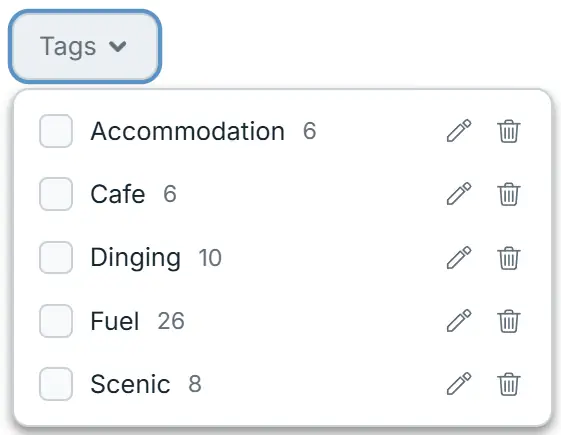
Active filters appear as removable chips below the toolbar. Click the x on a chip to remove that one, or use Clear filters to remove them all.
Renaming and deleting tags
Inside the Tags dropdown, each tag has rename and delete buttons:
- Rename tag — changes the tag on every favorite that uses it.
- Delete tag — removes the tag from every favorite that uses it. The favorites themselves are not deleted.
Filtering by icon
Click the Icons dropdown to filter by marker icon. This works the same way as tag filtering.
Selecting and bulk operations
Use the checkbox on each row to select favorites, or use the select-all checkbox in the toolbar.

With favorites selected, the toolbar buttons become active:
- Tag selected — add or remove tags on all selected favorites.
- Change icon — set the marker icon for all selected favorites.
- Export selected — export the selected favorites to a file.
- Delete selected — permanently delete the selected favorites (with confirmation).
Tip: Use Shift+click on a row to select a range. Use keyboard arrows to navigate the list, and Shift+arrow to extend the selection.
Editing a favorite
Each row has action buttons for that single favorite:
- Edit — opens the favorite dialog to change the name, address, description, icon, or tags.
- Show on map — flies the map to the favorite.
- Delete — deletes that one favorite (with confirmation).
Exporting favorites
Click the Export selected button in the toolbar to export favorites to a file.
- If favorites are selected, only the selected ones are exported.
- If nothing is selected, the current filtered view is exported.
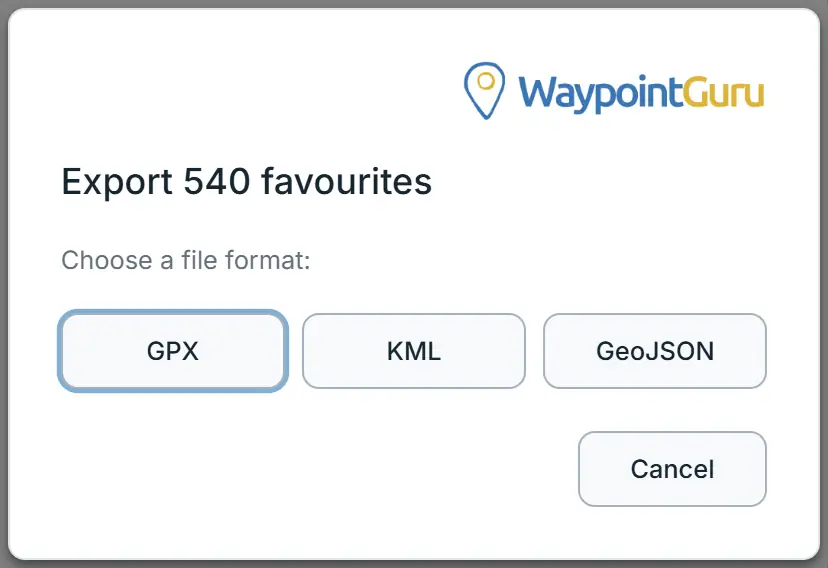
Available formats:
- GPX — exports as waypoints with a WaypointGuru extension that preserves tags.
- KML — exports as placemarks with tags in ExtendedData.
- GeoJSON — exports as point features with tags in properties.
All formats preserve the favorite name, coordinates, description, and tags.
Status bar
The status bar at the bottom shows the total number of favorites, how many are shown after filtering, and how many are selected.