Trips
A trip is a saved multi-day plan made up of ordered route days. Each day is a normal route, but the trip keeps those routes together so you can plan, open, share and export the whole trip.
When to use a trip
Use a standalone route for a single ride or drive. Use a trip when you want several route days to stay together.
Trips are useful for:
- Multi-day road trips
- Tours where each day has its own start, stops and finish
- Exporting one whole trip to GPX
- Sharing one link that contains every day
Creating and opening trips
Create a trip from the main menu or from the Route Manager.
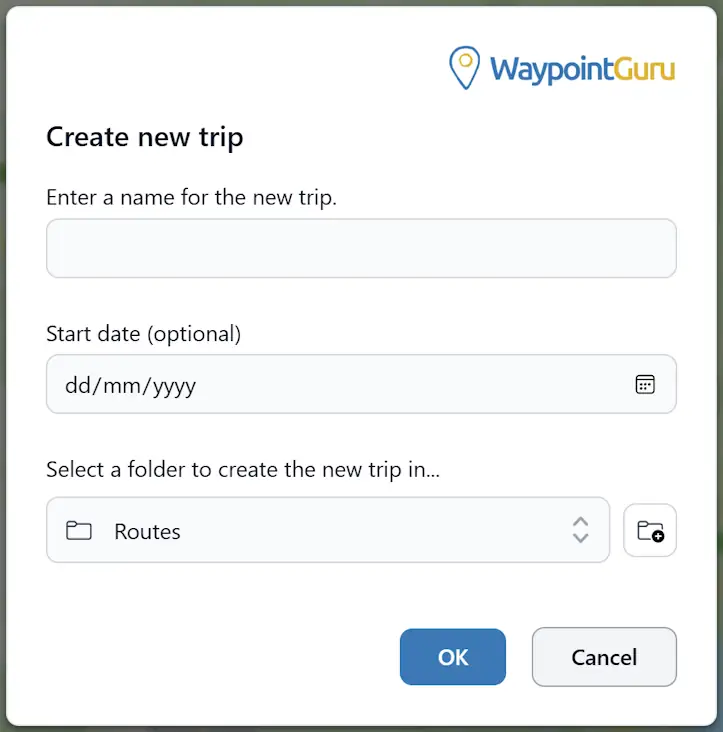
When you create a trip, you provide a trip name and can optionally set a start date. A new trip starts with one empty day route. You can add more days later from the trip actions menu.
Open trips from the recent list, from the Route Manager or from a shared trip link.
Trip layout
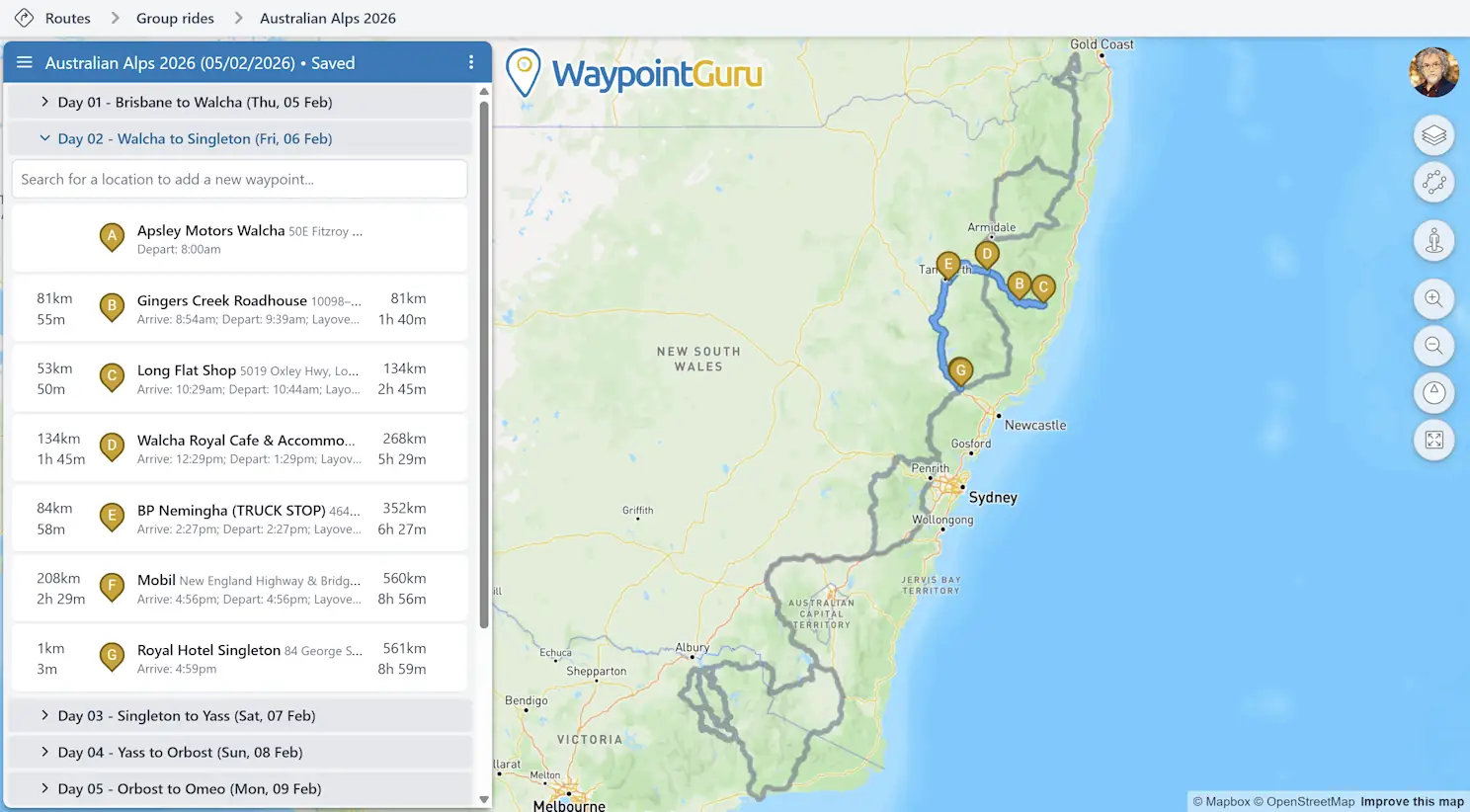
On desktop, a trip appears in the route panel as a list of day sections.
- The trip name is shown in the main caption bar.
- The trip actions menu beside the trip name controls the whole trip.
- Each day has a header with its day name and day actions menu.
- One day is expanded and editable at a time.
- Collapsed days remain visible as context and can be expanded when you need them.
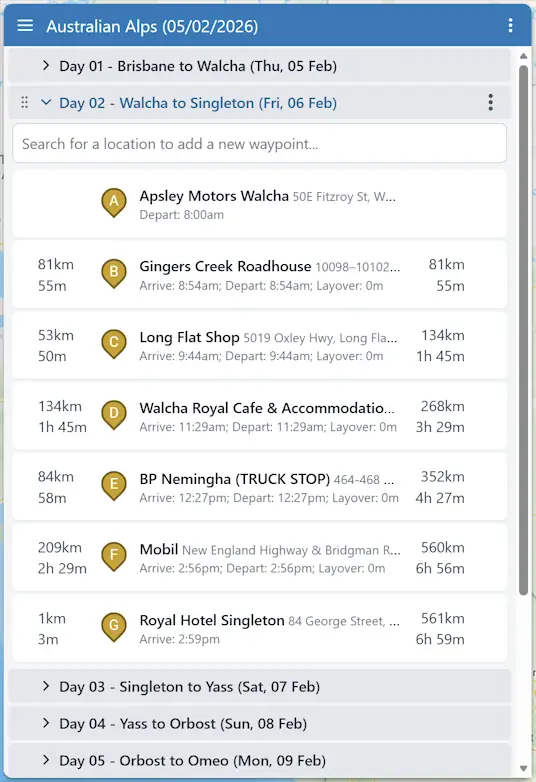
The active day uses the normal waypoint editor. Add, move, reorder and adjust waypoints in the same way you would in a standalone route.
Collapsed days appear on the map as muted route overlays. They help you see the whole trip, but only the active day is editable on the map.
Working with days
Use the trip actions menu to add a new day to the trip.
Use each day action menu to rename, link, export or delete that day.
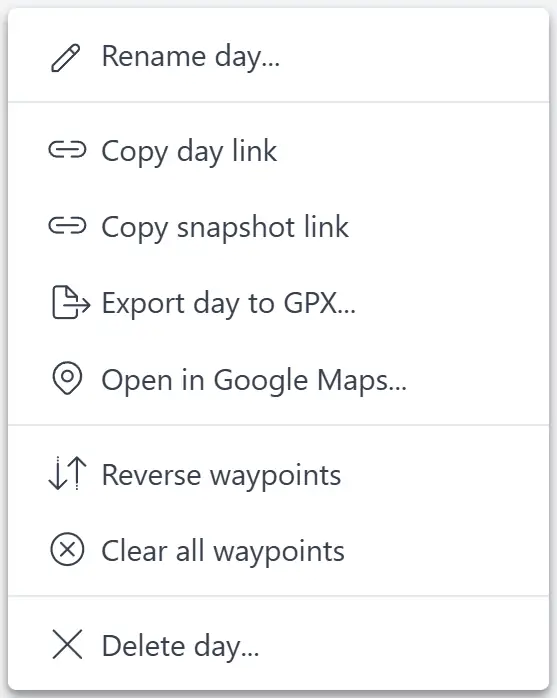
You can reorder days by dragging the drag handle in the day header. Day numbers update to reflect the new order. If the trip has a start date, day dates update from the new order too.
Each day name is generated from its day number, optional date and route details. If you rename a day, your custom day name is used instead.
Empty days can be used as rest days. Empty days can stay in the trip, but they are skipped when there is no route data to export.
Trip properties
Open Properties from the trip actions menu to rename the trip or change the optional start date.
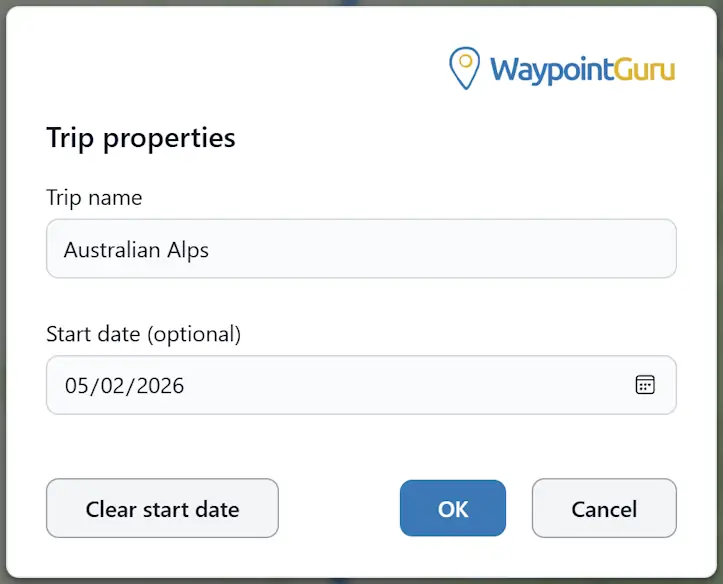
Trip dates are optional. When a start date is set, days use consecutive dates based on their order in the trip.
Trip day properties
Open Day properties... from a day's three-dot menu to give that day a custom name, and to set its default curviness and road avoidances. Leave the name blank to keep the generated one.
Each day carries its own routing defaults, so one day can favour curvy roads while another takes the direct route. A day's curviness and avoidance settings can only be changed while that day is open in the editor.
Trips in the Route Manager
The Route Manager shows trips beside routes and folders.
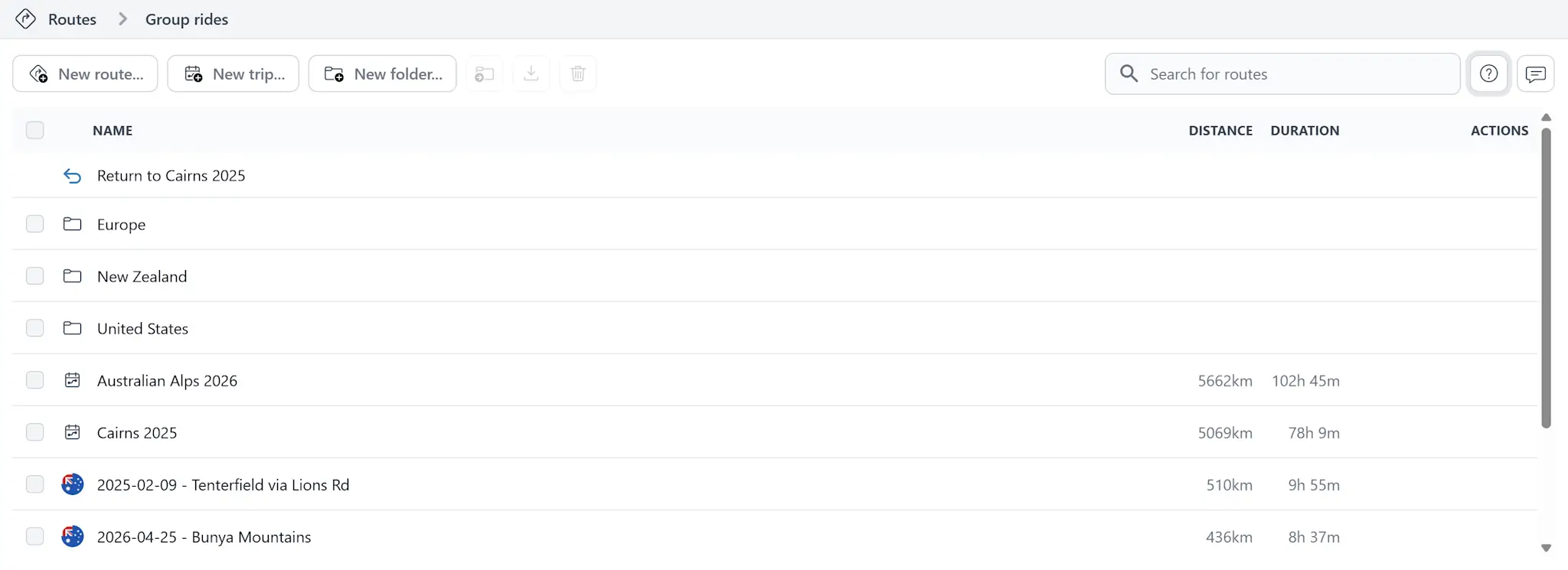
From the Route Manager, you can:
- Create a new trip
- Open a trip
- Search for trips by name
- Move trips between folders
- Rename trips
- Delete trips
- Turn trip sharing on or off
- Copy a trip share link
Deleting a trip deletes its day routes too.
Sharing trips
Trip links open the whole trip. Day links open the trip with a specific day active.
Shared trips are read-only for recipients. A recipient can view days, switch days, copy links, open days in Google Maps and export GPX, but cannot edit the trip or its day routes.
Trip day routes are shared through the parent trip. Turning trip sharing off blocks both the trip link and direct links to its days.
Exporting trips to GPX
Open the trip actions menu and choose Export trip to GPX... to export the whole trip.
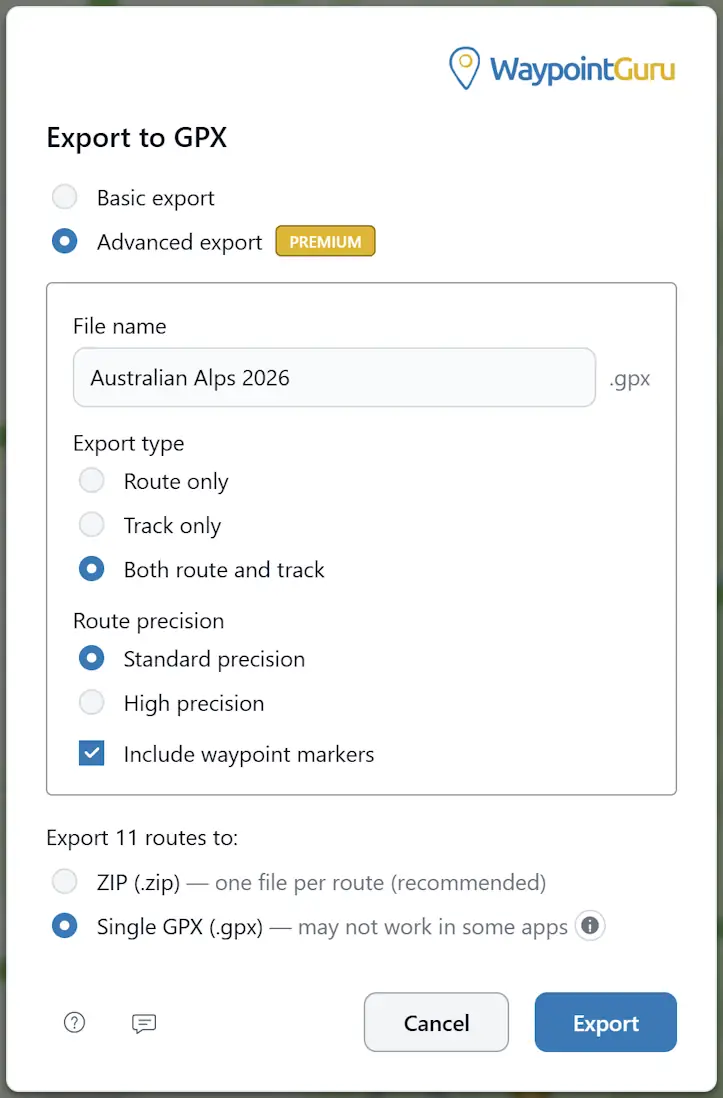
Trip export can create one combined GPX file or a ZIP file with one GPX file per day. Empty days with fewer than two waypoints are skipped.
To export just one day, open that day's action menu and choose Export day to GPX....
Mobile trips
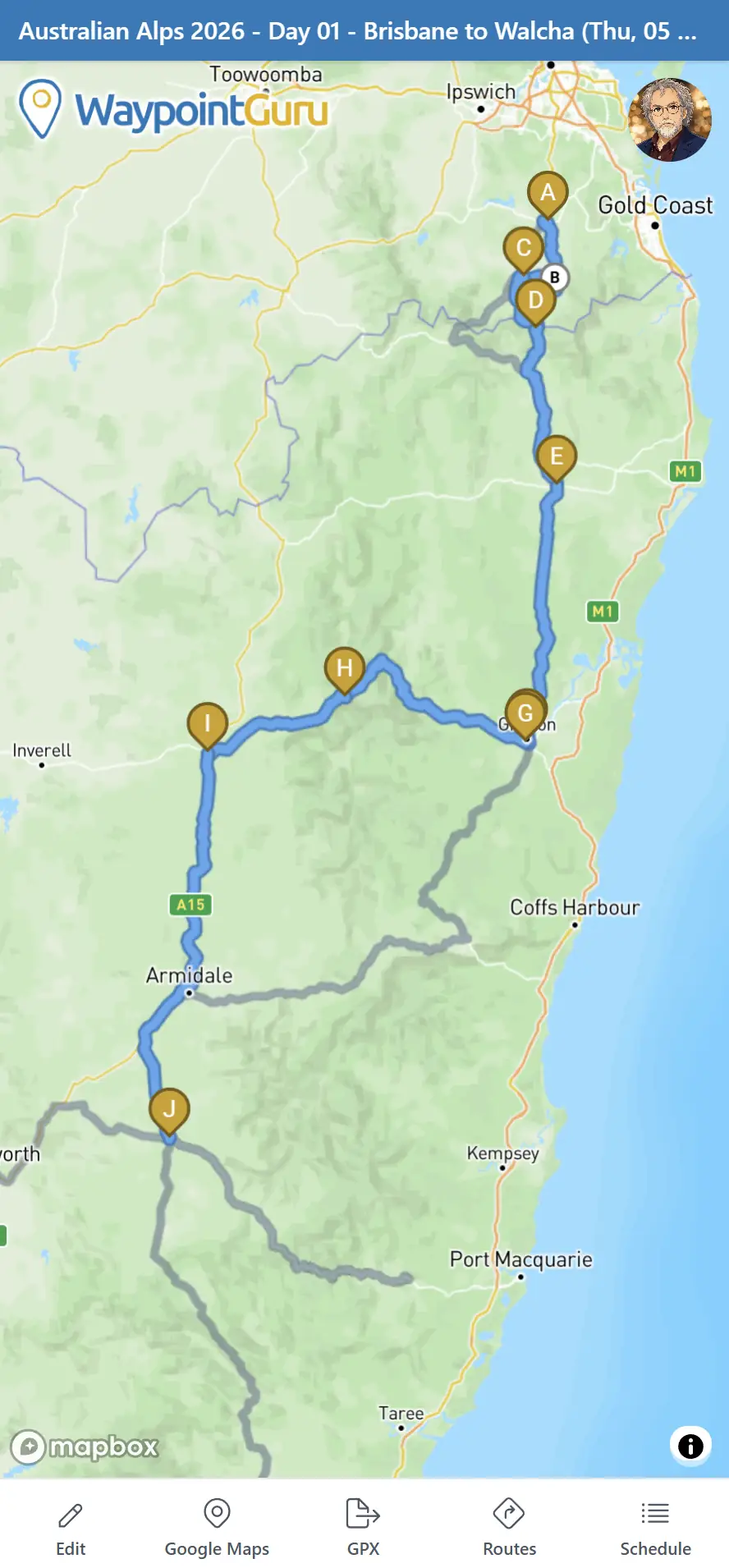
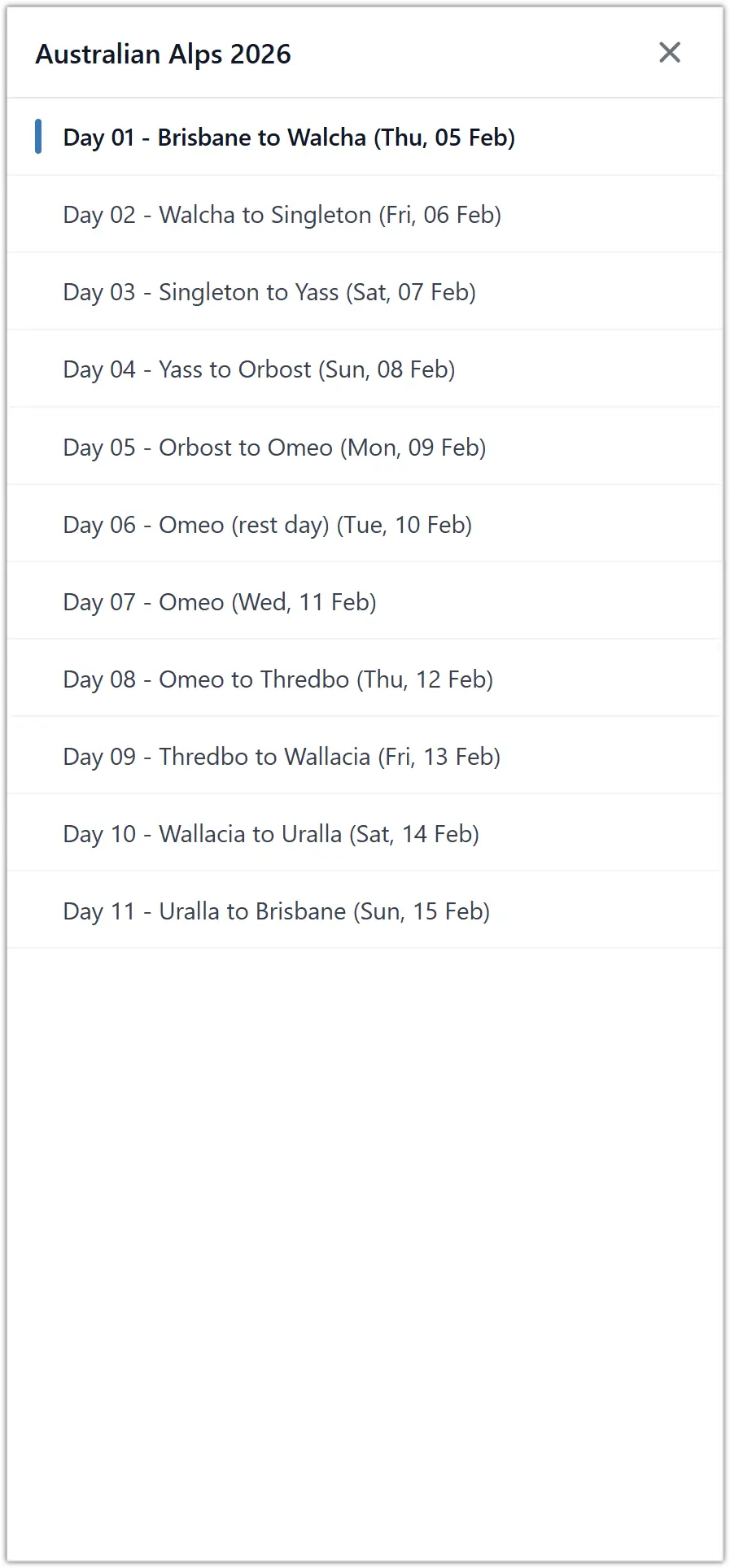
On mobile, trips are opened from the mobile Route Manager or shared links. The blue trip bar shows the open trip and selected day.
The map shows the selected day. The mobile GPX button lets you choose between exporting the current day and exporting the whole trip. Tap the blue trip bar to choose another day, then tap a day in the list to open it.