Saved Routes, Trips and Route Manager
Saving routes and trips
If you are signed in, you can save routes to your WaypointGuru account. Once a route is saved, any further changes are saved automatically.
Trips are also saved to your account. A trip contains ordered day routes, and trip structure changes are saved immediately.
The route or trip actions button sits beside the document name and gives quick access to actions for the current route or trip. New route and New trip are in the main menu.
- Save — gives the current route a name and saves it to your account.
- Properties — edits the current route's name, optional date, and default curviness and road avoidances, or the current trip's name and optional start date.
- Add day — adds a new day to the current trip.
- Close — closes the current route or trip, leaving an unsaved empty route in its place.
To open a recent route or trip, use the main menu. If you are signed in, click any folder in the breadcrumb bar at the top of the screen to open the Route Manager for that folder, or use the main menu. Saved routes and trips can be organised into folders.
Route Manager overview
The Route Manager is the main place to work with saved routes, trips and folders. It opens full screen. At the top of every folder list, a link takes you back to the route or trip you were previously editing.
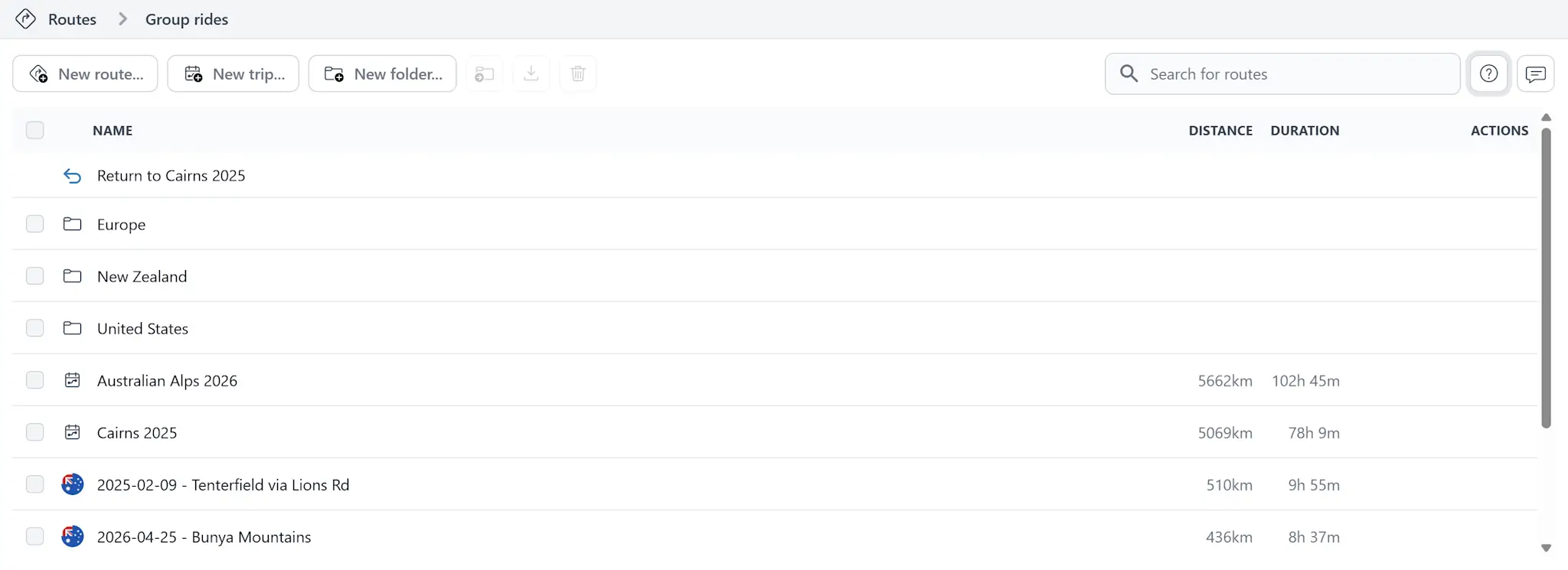
It lets you:
- Browse your folder structure
- Create new routes
- Create new trips
- Create new folders
- Open routes and trips
- Search for routes and trips by name
- Rename routes, trips and folders
- Move routes, trips and folders
- Delete routes, trips and folders
- Turn route and trip sharing on or off
- Copy route and trip share links
Searching and opening
Use the search field in the Route Manager to find saved routes and trips by name.
Search results show the folder path as part of the item name so you can see where each matching route or trip is stored.
Click a route to open it as a standalone route. Click a trip to open the trip with its day list.
Moving, renaming and deleting
Routes, trips and folders can be managed either from their action buttons or by selecting multiple items and using the toolbar.
This is useful when you want to reorganise folders, archive old routes or tidy up several saved items at once.
Deleting a trip also deletes the day routes inside that trip.
Sharing
Saved routes and trips can be shared from the Route Manager.
- A route share link opens that route.
- A trip share link opens the whole trip.
- A trip day link opens the trip with that day active.
Shared routes and trips are read-only for recipients. Turning sharing off makes the shared route or trip unavailable to people who use the link.