Menus and Document Actions
WaypointGuru uses separate menus for app-level actions and actions that belong to the route, trip or trip day you are working on.
Main menu
Use the main menu button  beside the route or trip name for app-level actions.
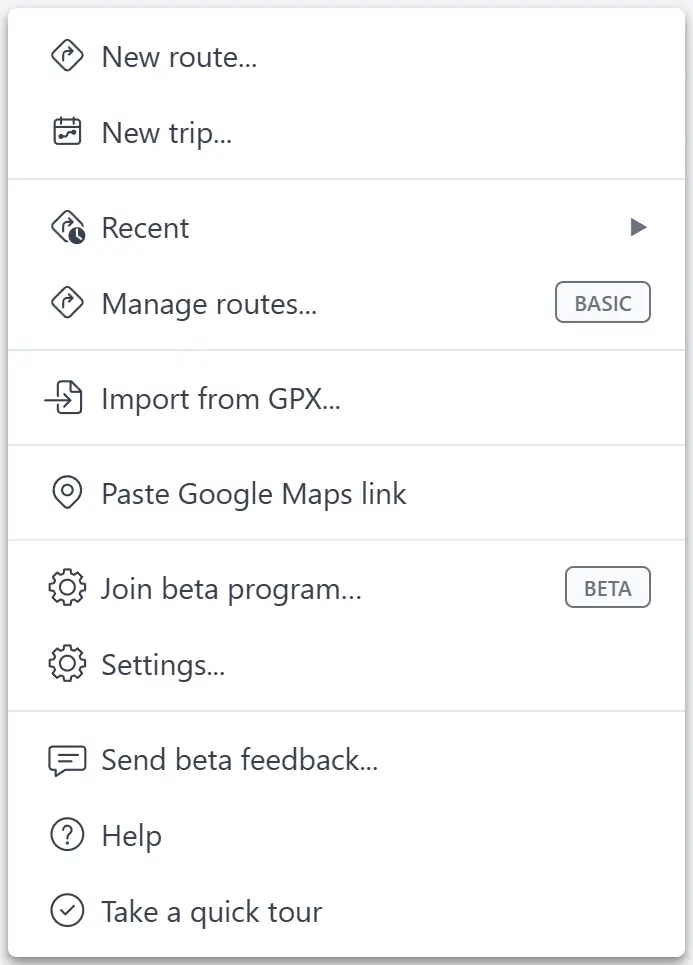
The main menu is for:
- Creating a new route or trip
- Opening recent routes and trips
- Opening the Route Manager
- Importing GPX files
- Pasting a Google Maps link into the current route or active trip day
- Opening Settings, Help and the quick tour
Current-route and current-trip commands are not in the main menu. Look for the three-dot action menu beside the document name instead.
Route actions menu
When a standalone route is open, the three-dot action menu button  beside the route name contains actions for that route.
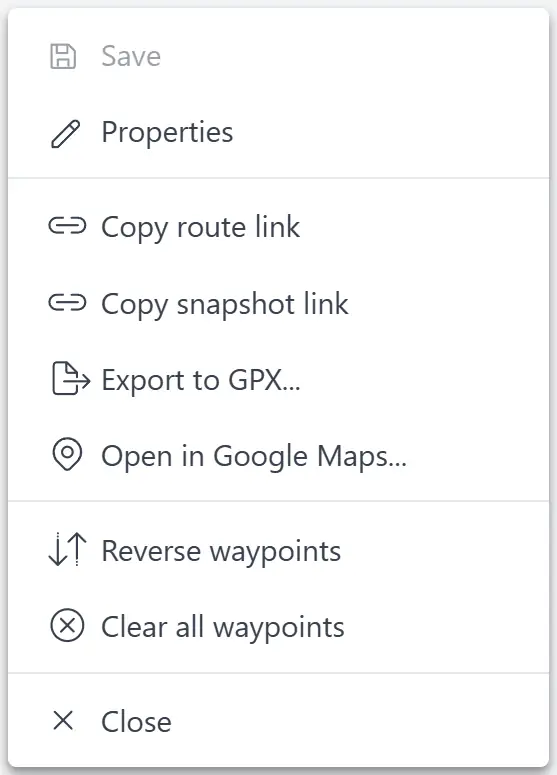
Use it to:
- Save an unsaved route, or save a copy of a read-only route
- Open route properties for a saved editable route
- Copy a route link or snapshot link
- Export the route to GPX
- Open the route in Google Maps
- Reverse waypoints or clear all waypoints
- Close the route
Some actions are disabled when they do not apply. For example, saved editable routes are auto-saved, so Save is disabled once the route is already open read-write.
Trip actions menu
When a trip is open, the three-dot action menu button beside the trip name contains actions for the whole trip.
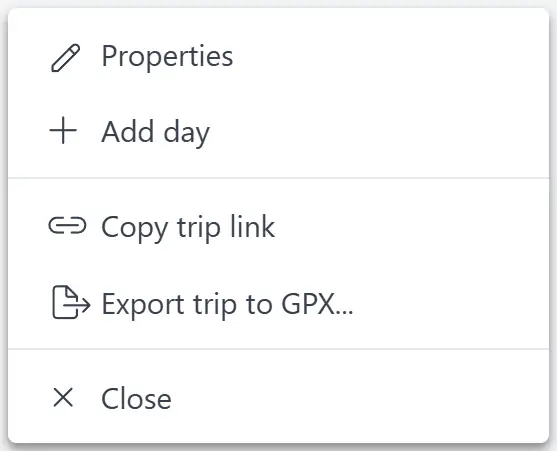
Use it to:
- Edit the trip name or optional start date
- Add a new trip day
- Copy the trip link
- Export the whole trip to GPX
- Close the trip
Actions that edit the trip are disabled for read-only shared trips, but link copying, GPX export and closing remain available.
Trip day actions menu
Each trip day header has its own three-dot action menu  . It applies only to that day.
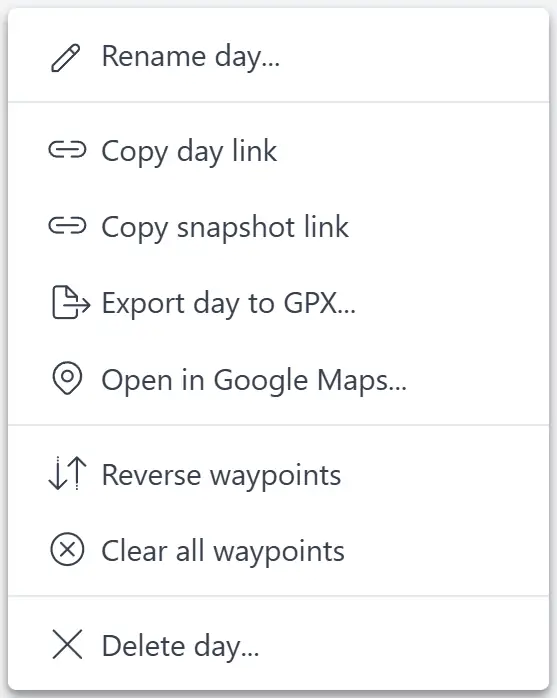
Use it to:
- Rename the day
- Copy a day link or snapshot link
- Export that day to GPX
- Open that day in Google Maps
- Reverse or clear waypoints for the active editable day
- Delete the day
Day menus are available on expanded and collapsed days. Read-only actions can be used from a collapsed day without switching to it. Editing actions such as reversing or clearing waypoints are available only for the active editable day.